
Create a Scenario
To process incoming calls, you have to create and activate a scenario. Scenario has to be linked to number(s).
To create Scenario, please access Settings menu, select Scenario tab and click on Add scenario.

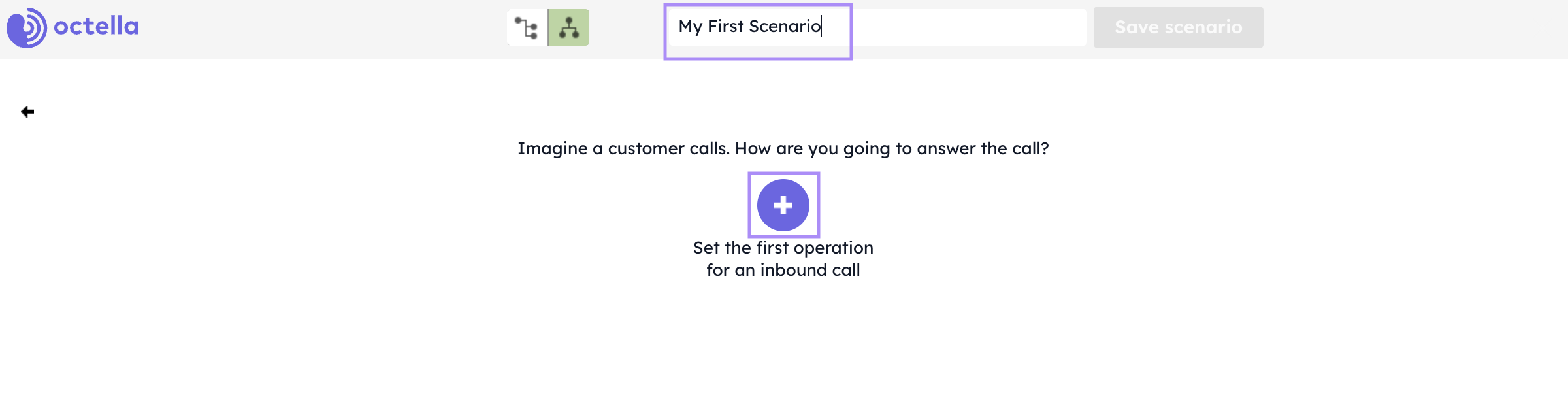
Enter a Name for your new scenario and click on the Plus button to set the first operation.
A brief introduction on most popular Operations of processing the indbound calls:
- Redirect. The call will be forwarded to the specific group of employees (or several groups).
- Voicemail. The operation allows the Subscriber to leave a voice message, that further can be sent to specified e-mail as an audio recording. If no voicemail left, a notification email can be sent including the Subscriber number and the time of the call. The operation is most appropriate to be set:
- as the final Operation if no employee answered the call
- or for a non-business hours scenario.
- Voice Greeting. Use the Operation to playback the Audio message if you want to navigate the calling party to various selections or for non-business hours.
- Menu. The Operation of interactive voice response (IVR Menu) allows to select one of the keys on dialpad to connect with the responsible person of selected services, which leads to further IVR selection or connection to Employee/Group of Employees. In order not to lose the call, when Subscriber did not press any of the active menu keys or pressed inactive key, it's possible to set the “Call waiting time out” and “Incorrect input” operations.
- Forwarding to Extension number. The Operation allows to enter extension number and connect with specific employee. The call will be redirected sequentially to all numbers assigned to an employee. If important not to loose any calls the “Forwarding failed” and “Number entered incorrectly” options available, which allows to set up further forwarding to a back-up group of operators.
- Forwarding to an employee. In case specific number assigned to specific Employee, use this Operation to forwarded the call to appropriate employee.
Choose the most suitable inbound call processing operation and click on to add it.
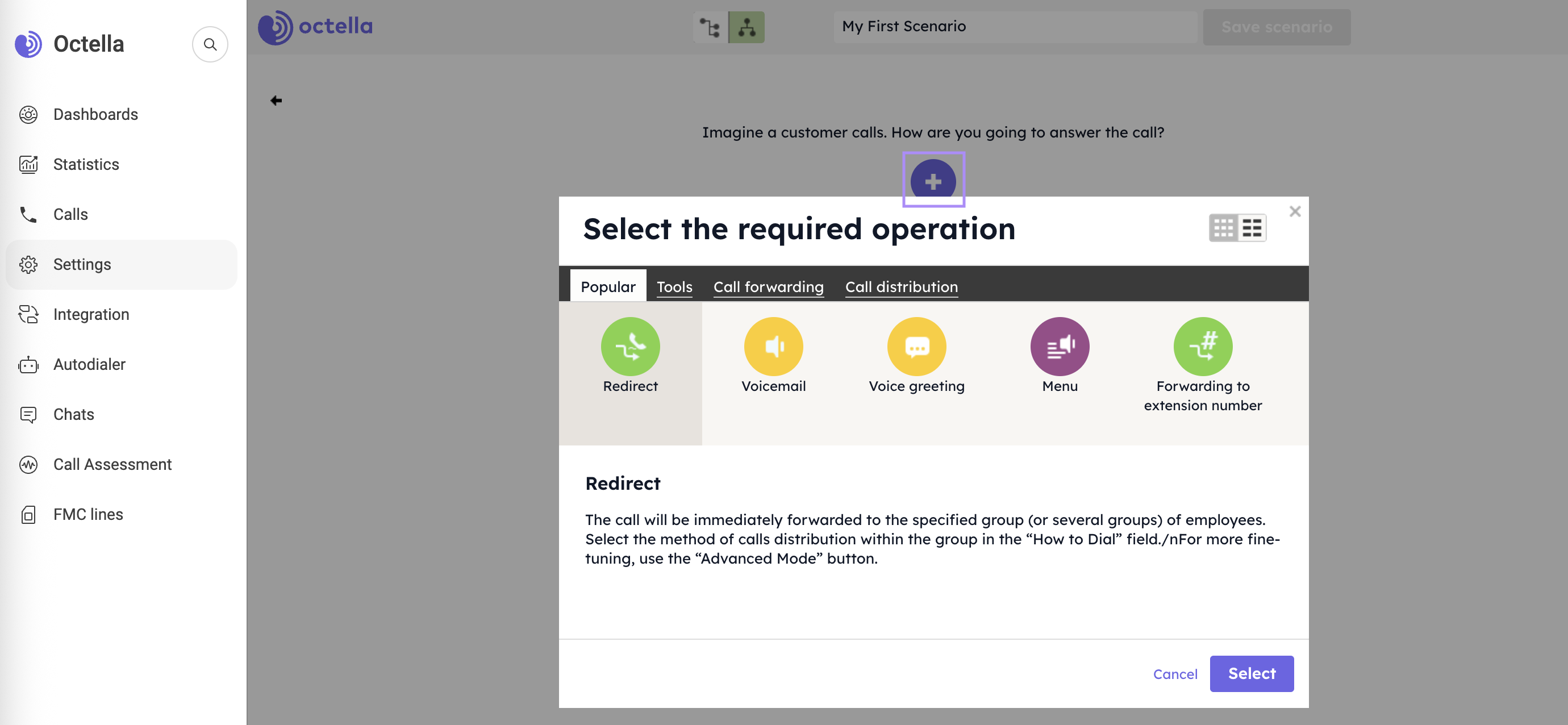
Example, how to create a Scenario, using the Redirect Operation.
When Redirect Operation selected, You have to start configuration by choosing existing one or creating a new group of Employees.

By choosing to “Create a new group”, you have to:
- enter a Name of New group
- choose Employees from available users, who will process incoming calls
- (scroll down) click on Equalize to ensure that system distributes calls by even shares by default; or make your own share adjustments.(scroll down). Make sure all chosen Employees are available
- click on Create.


Now select “How to reach option” based on your business specifics and call flow requirements.
- As in the Sales department. We equalize the total number of calls made to the employee. Considering those lost to motivate employees to always pick up the phone.
- As in the Support department. The total talk time between employees is equalized.
- Priority calling. Always call the Employees starting with the first in the list and call them in order.
- Strictly by turns. This option applies a consecutive dialling considering previous call distribution history.
- To quickly answer the subscriber. Call at once as many Employees as specified in the settings and how many it is technically possible to call at the same time.
- Your settings. Set the dialling mode yourself.

The Advanced mode allows to make specific adsustments to process calls based on the business policies:
- You can set, what number to be displayed to the Operator
⚬ Caller number. Operator will see a Subscriber number, who is calling.
⚬ Service number. Operator will see a number that is receiving an inbound call. Useful, when data protection important and Operators don't have to see the Subcriber numbers. - Enqueuement. This option allows not to lose calls, when all group employees are busy. The call will remain in the queue until some of Employees available to answer the call. The feature can be adjusted if redirect including one group only.
- Do not call busy employees. The feature allows to skip call forwarding to Employees, who are on the call. This provides correct reporting.
- After the call, call no earlier than. This selection prevents from receiving calls immediately after call finished and provides specific time for Post Call Processing (to write the summary, to fill out CRM, to send email, etc.).
