
Calls
The report is designed to group and export call data.
Each user of the personal account sees the Calls report in accordance with their Group permission settings. For example, if a user does not have rights to view the Settings -> Employees interface, they will not be able to see the Employee column in the report or build a filter that includes an employee data.
Data grouping
The report features a wide range of filters that allow you to group data by:
• Inbound and outbound calls;
• Lost and received calls;
• Call duration and waiting duration;
• Virtual numbers;
• Employees.
And other parameters that can be set using the Add Filter button: 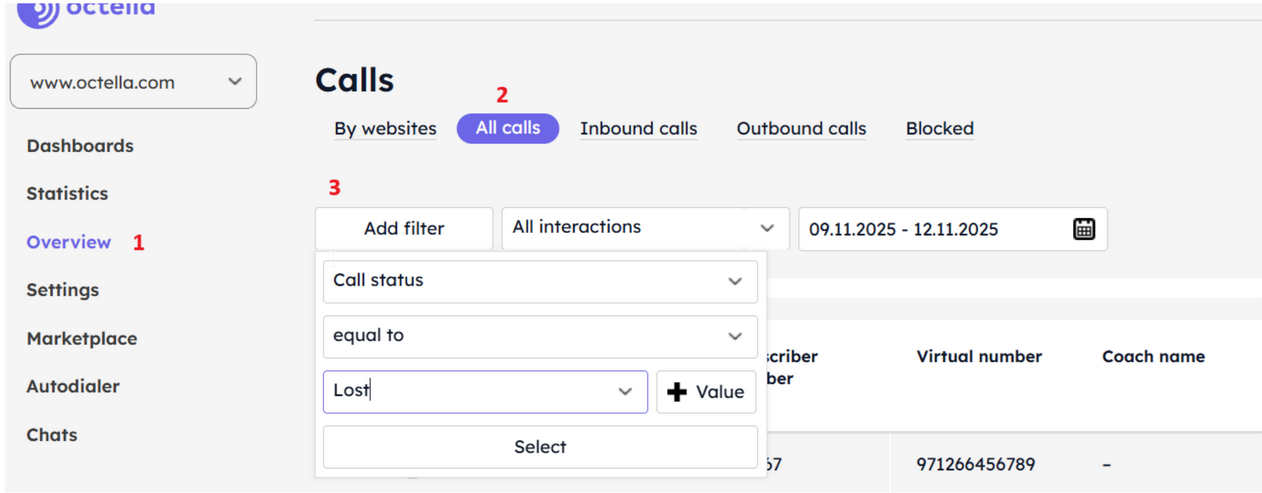
The selection can include several conditions based on the “or” principle: 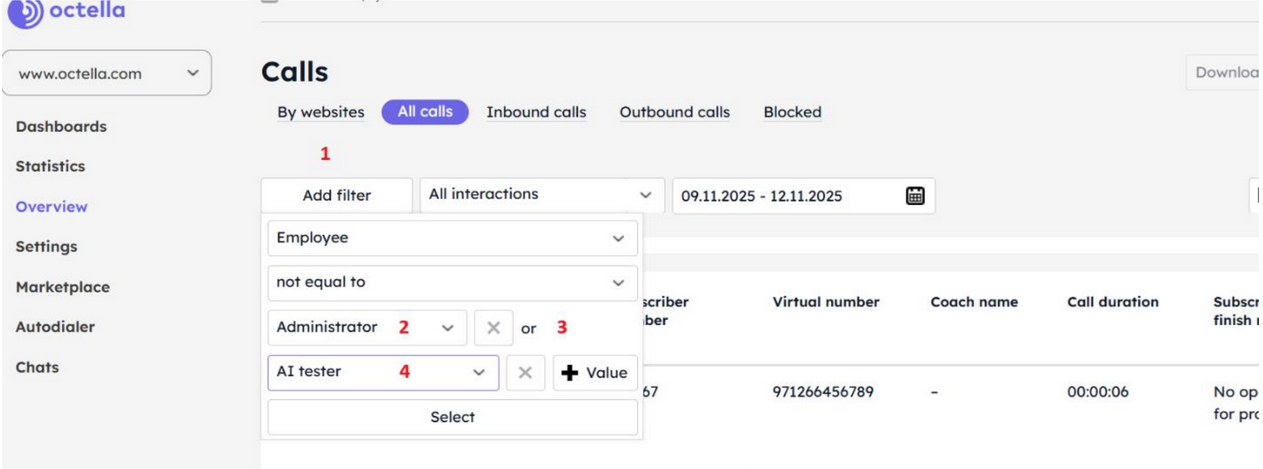
As well as several conditions based on the “and” principle:

Quick filters
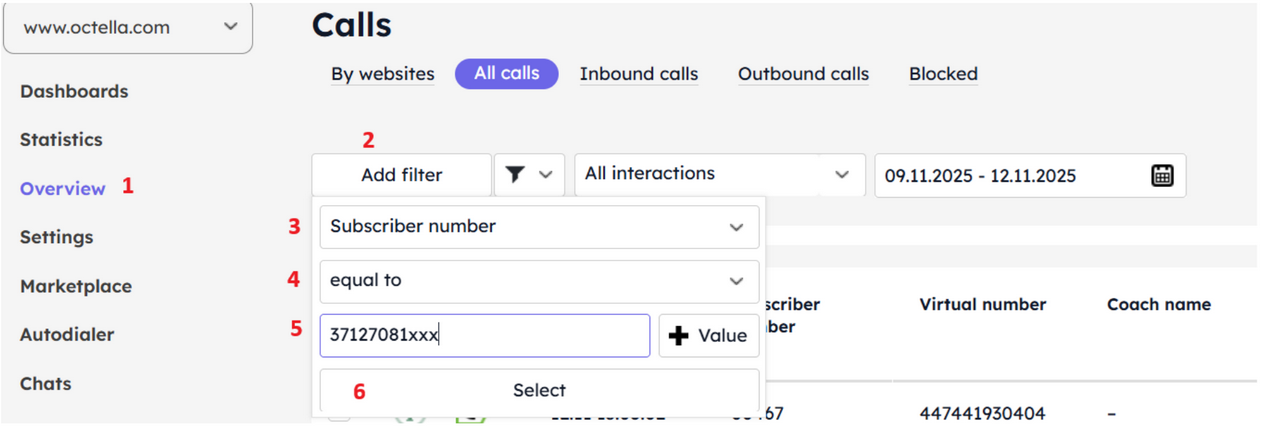
You can create a quick filter for the contents of a column by right-clicking on its name. For example, to quickly download all conversations with a customer you are interested in.
Or to see where your employees are calling during non-working hours.
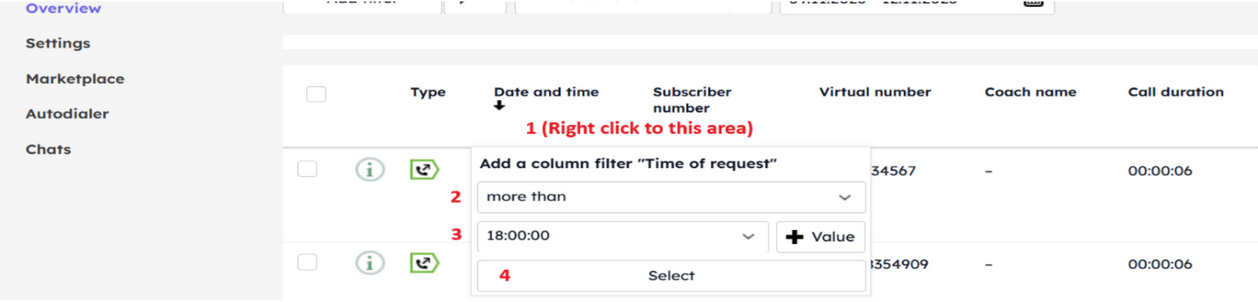
Quick filters are available in each column.
Call detail
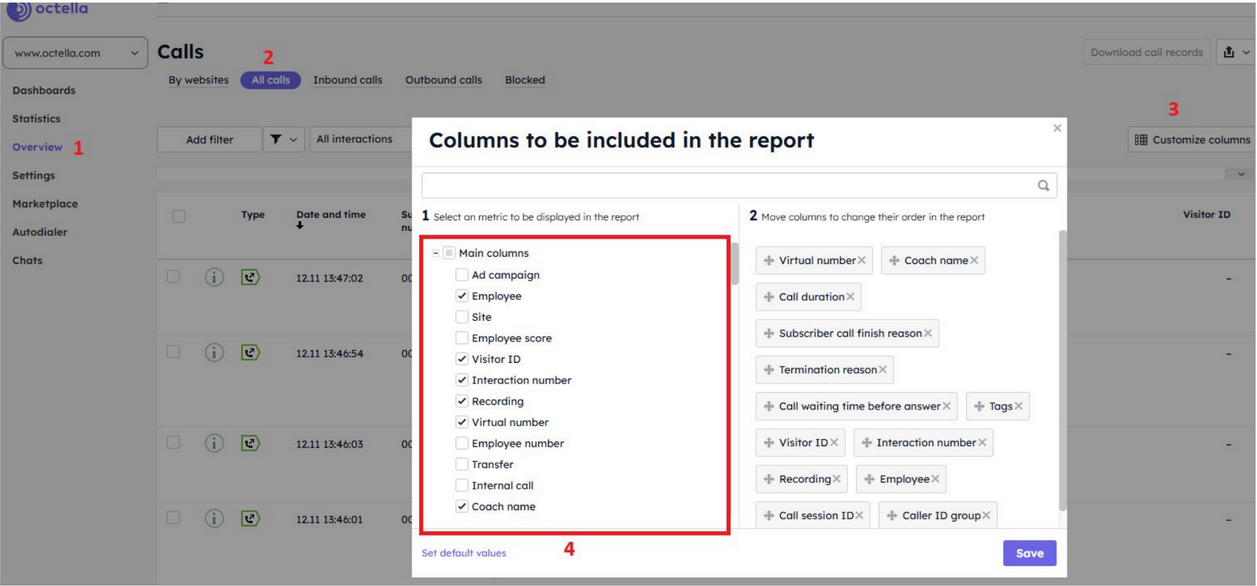
Information based on the specified parameters is displayed in a table: one row = one call, with the call parameters displayed in columns. To configure the columns you want to display, use the “Configure columns” button:
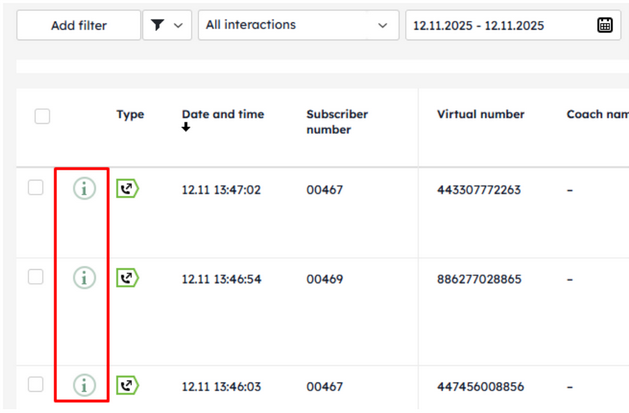
To view detailed information about a specific call, click on the “i” button:
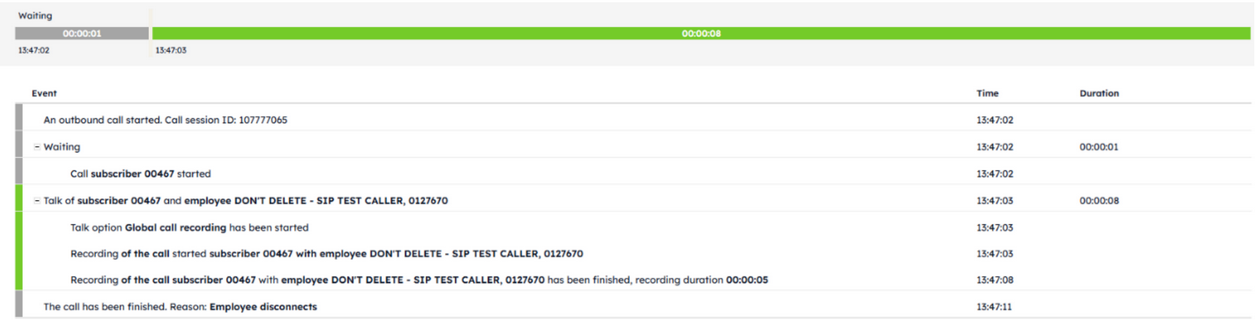
A detailed view will open, where you can see which operations and employees the call went to, as well as the reasons why the employees were unable to answer it:
Downloading a report
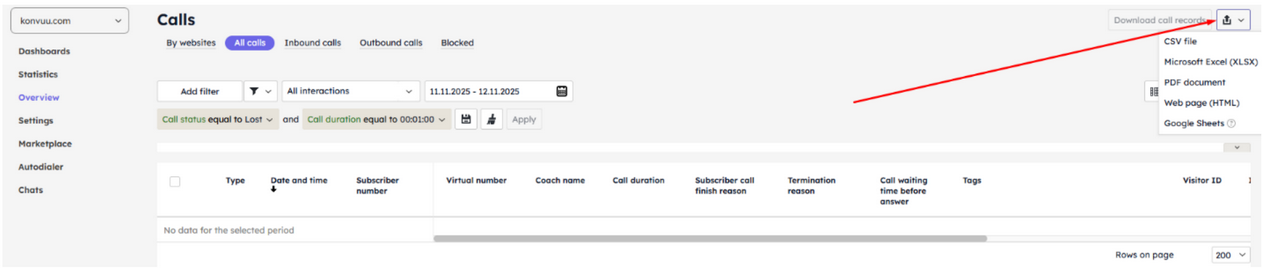
To download a report for a given selection, click the download button in the upper right corner and select a convenient file format:
Downloading call recordings
The report allows you to download call recordings. To do this, check the box in the table header:
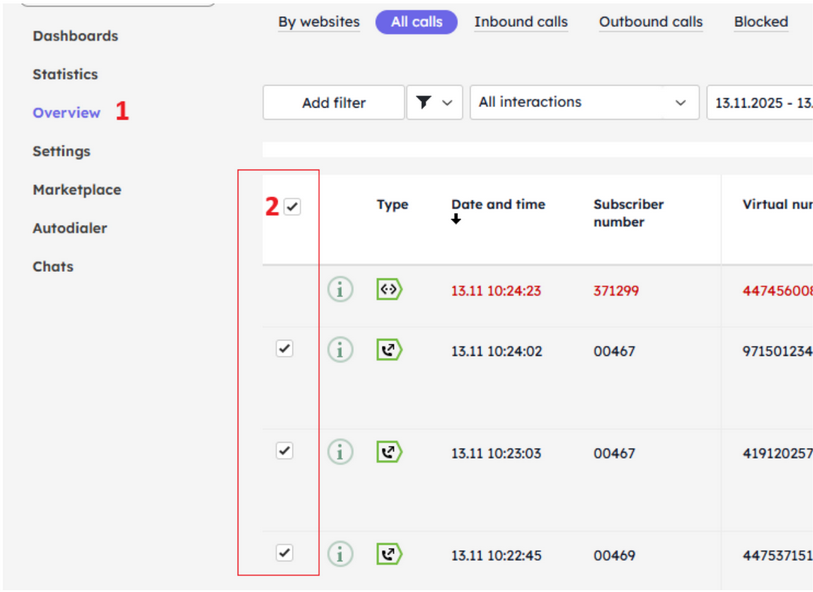
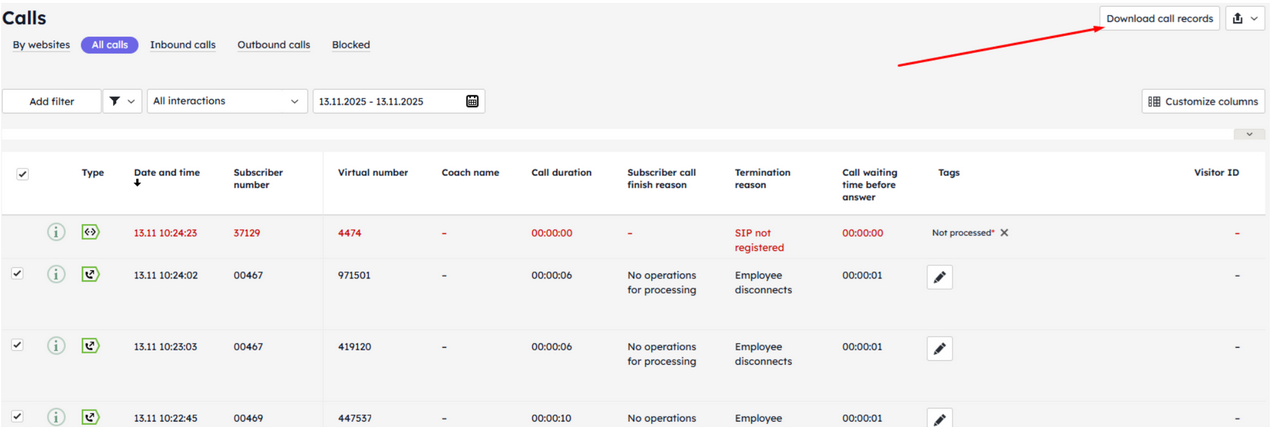
And click the “Download call recordings” button:
No comments to display
No comments to display